Upload Code
Download the code by clicking this link: Download Code
The downloaded compressed package contains code, flash_download_tool, and driver installation.
UPS |
RPi |
|---|---|
5V |
5V |
GND |
GND |
SCL |
SCL |
SDA |
SDA |
Connect the Raspberry Pi to the UPS Module 3S according to the GPIO pinout above, and be sure to wire up the power terminals as well.

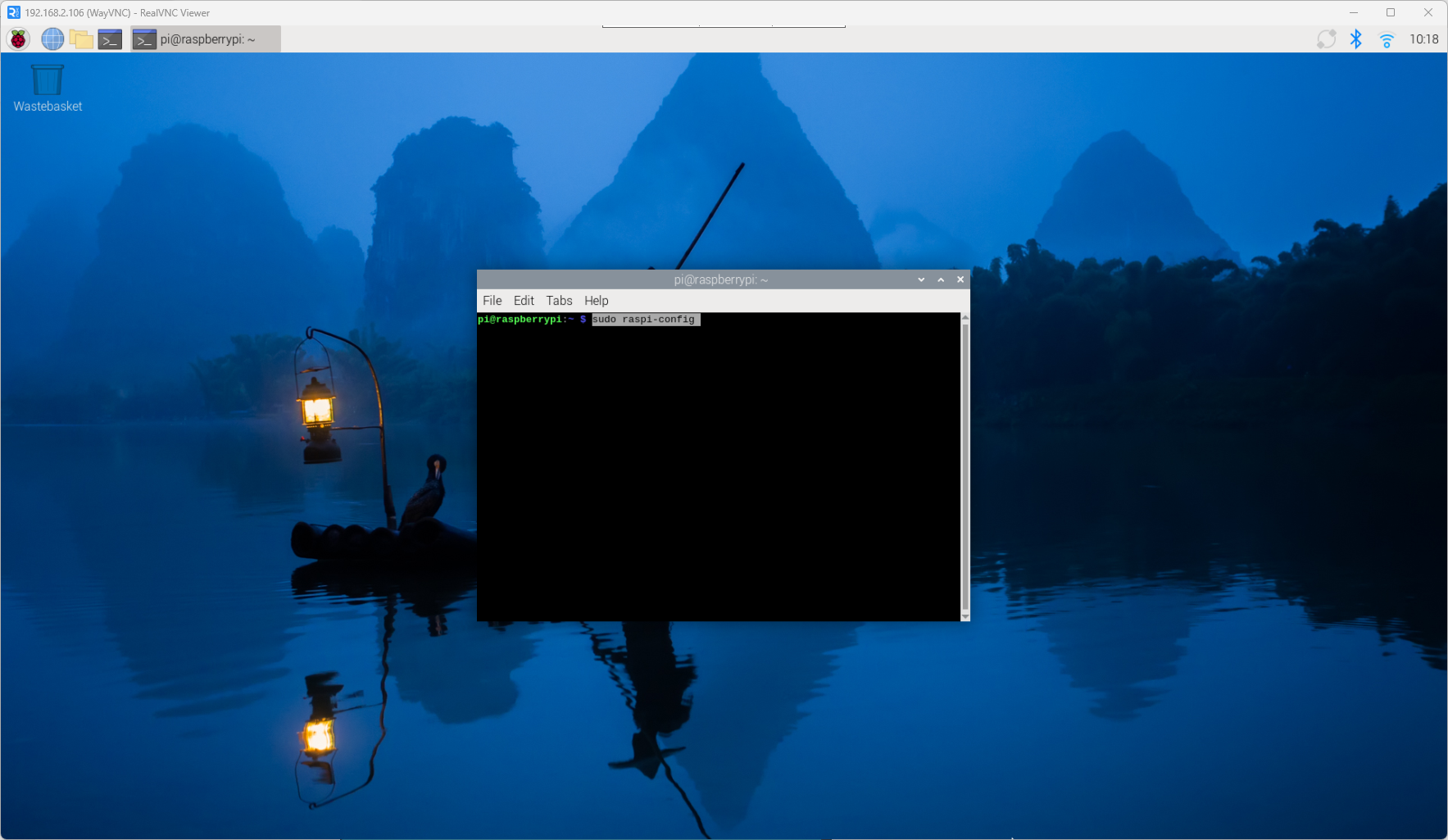
Open a terminal on the Raspberry Pi and enter:
sudo raspi-configto launch the configuration interface.

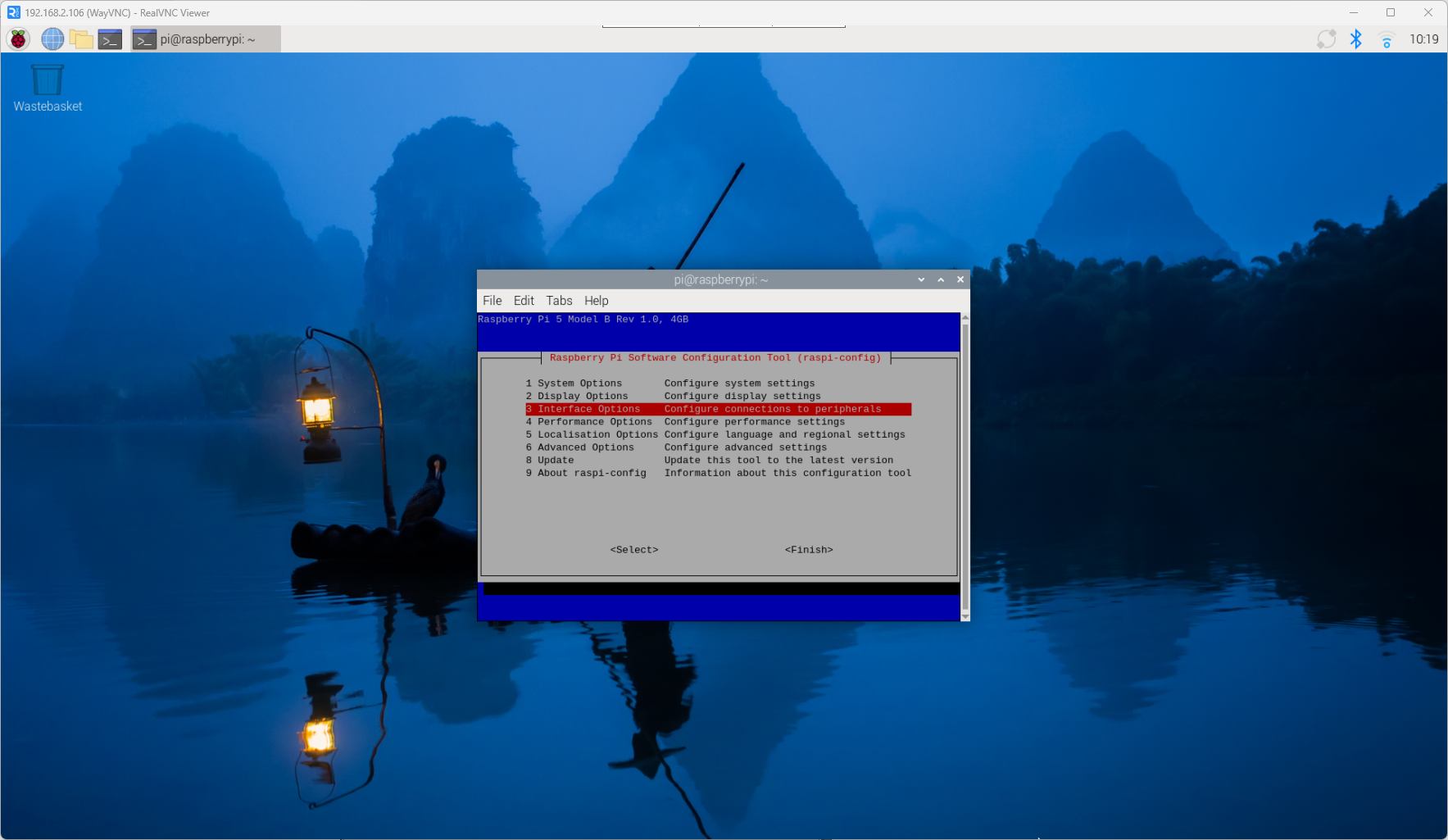
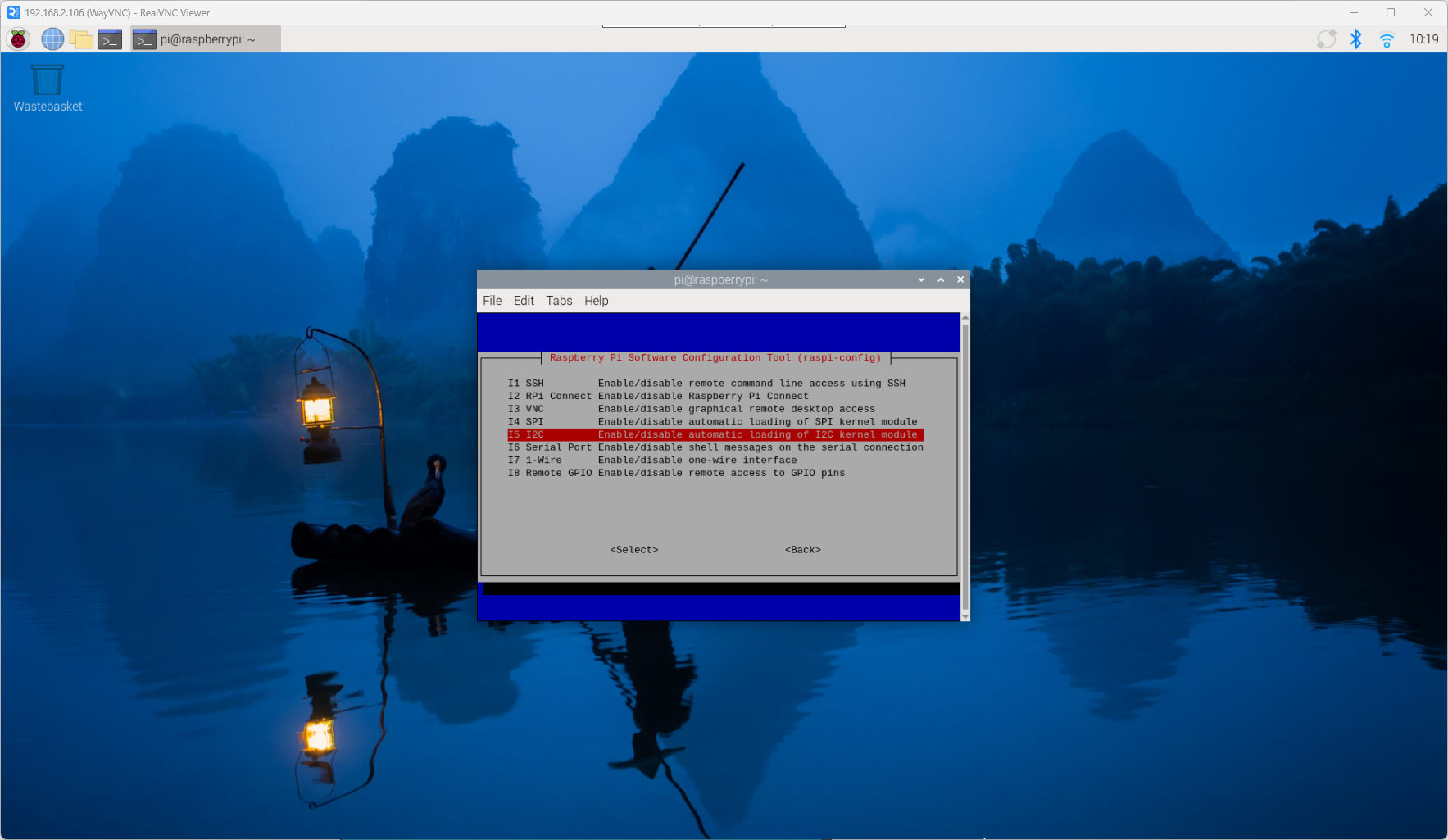
Select Interface Options → I2C → Yes.
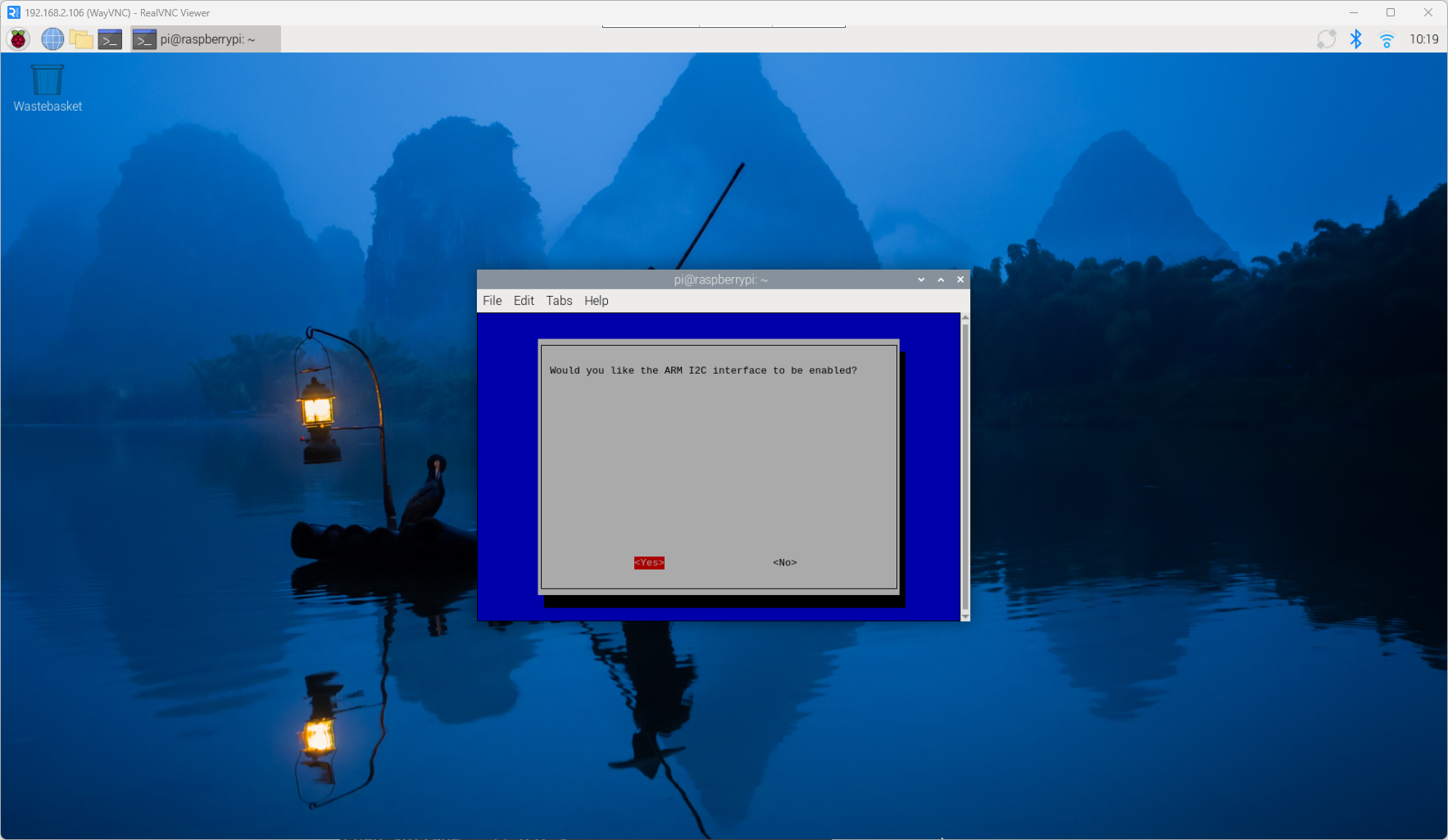
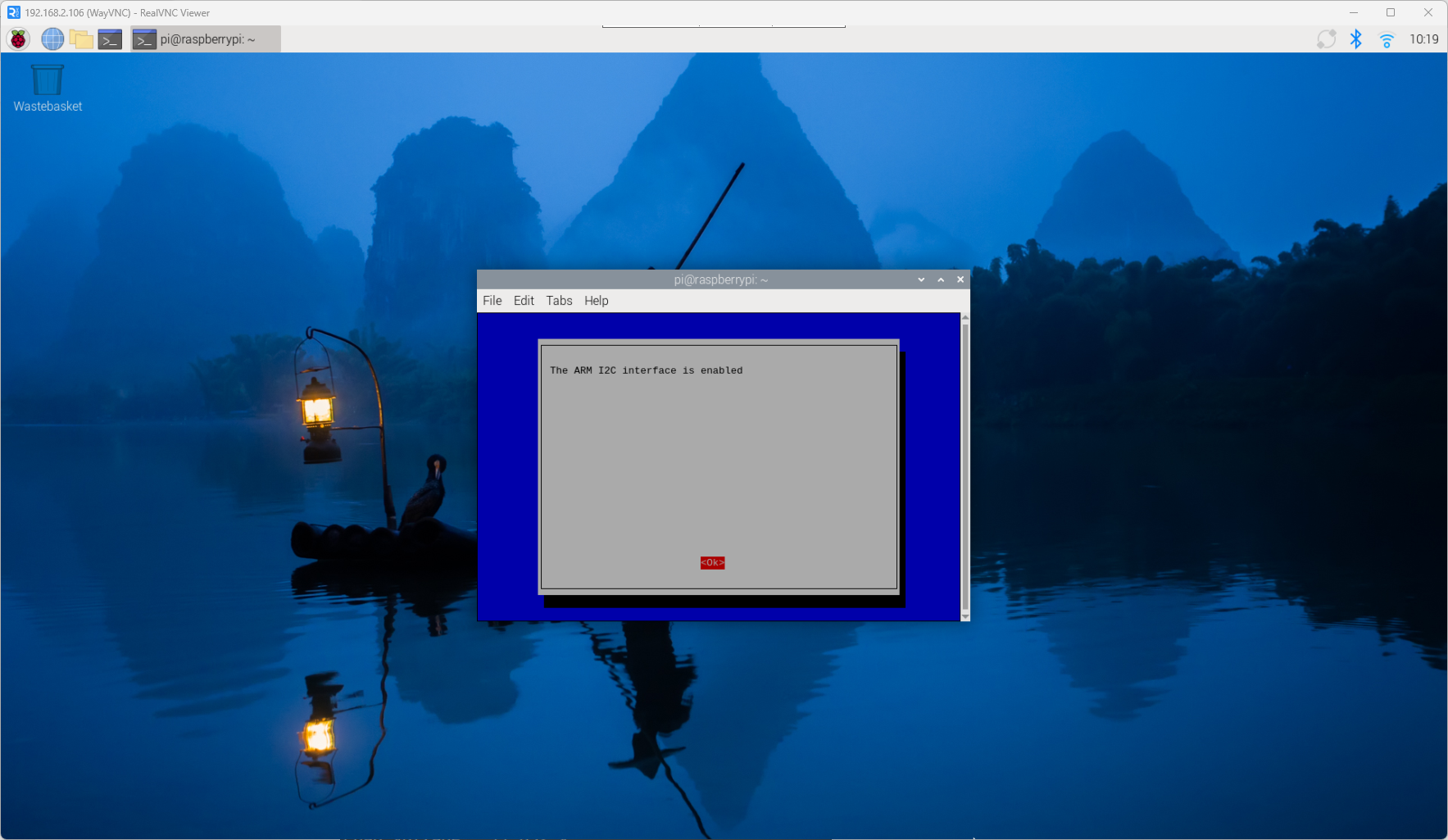
After enabling I2C, download the example code.
Enter the following command:
git clone https://github.com/lafvintech/UPS-Module-3S.git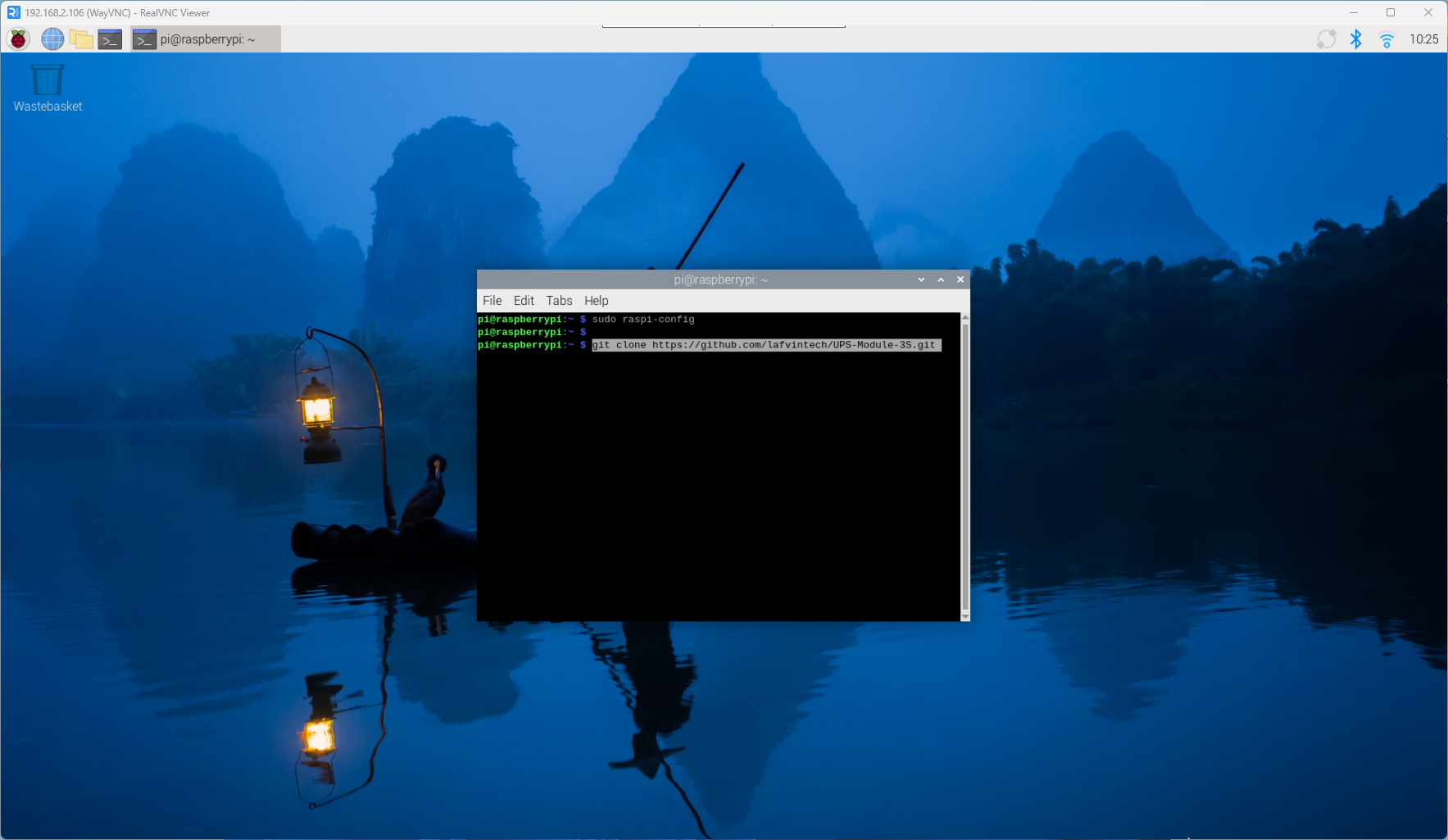
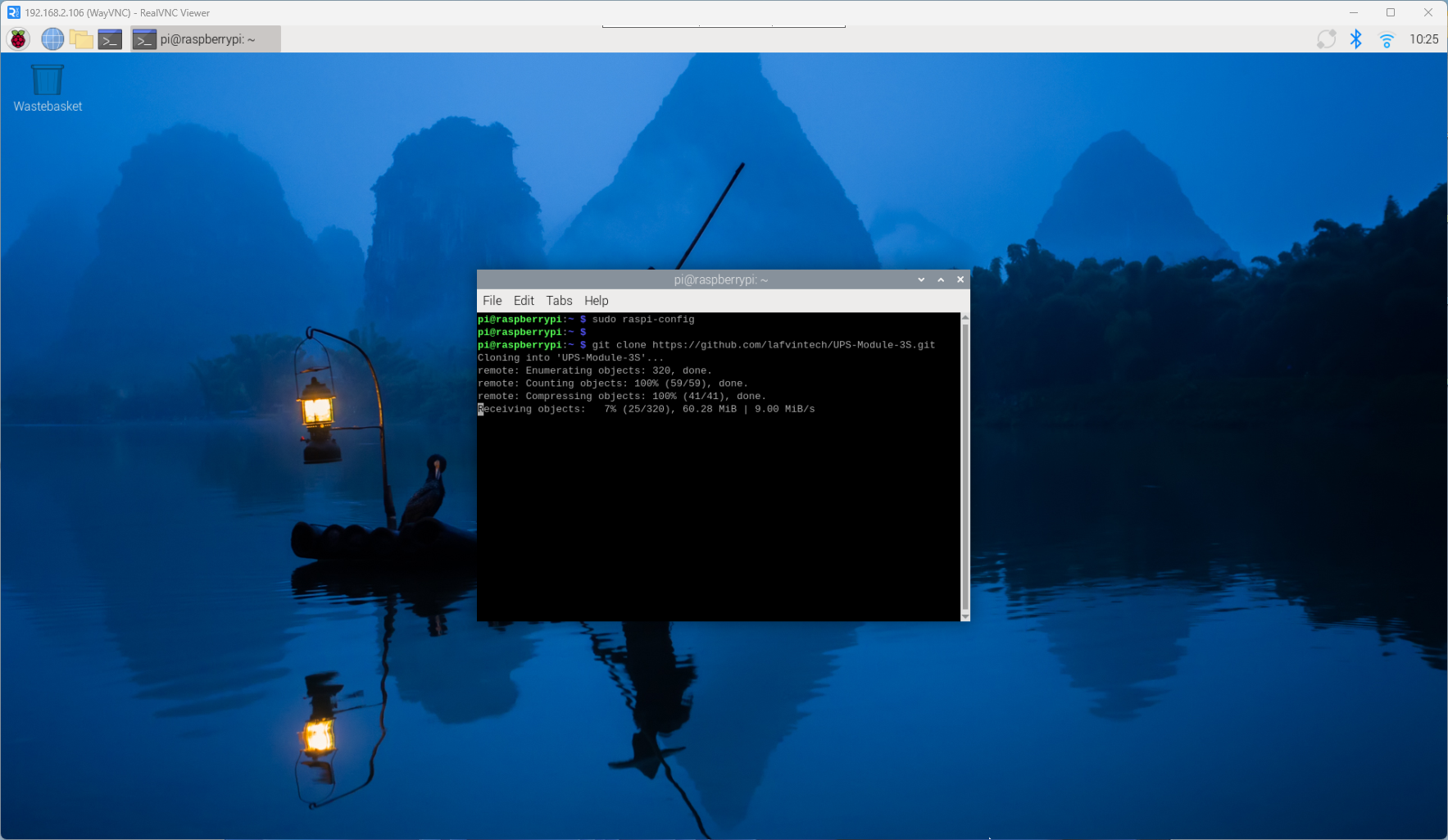
After downloading the code, you can usually enter this command to go straight into and run the power-monitoring program.
cd UPS-Module-3S/Code/
sudo python3 PowerWatch.py
If you didn’t download it to this directory, you can also locate the file using the cd and ls commands.
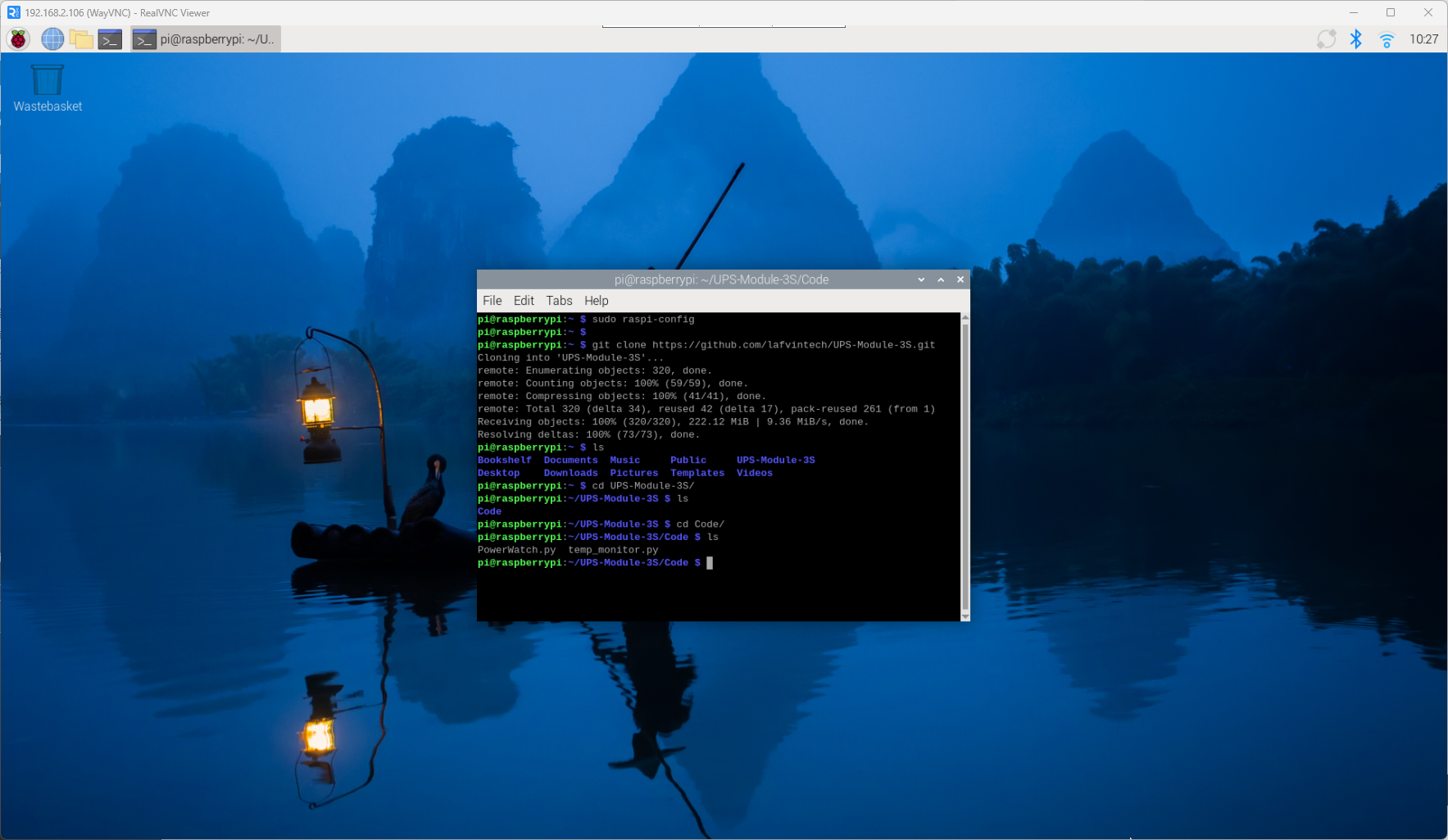
Among them, item sudo python3 PowerWatch.py is the command used to run the Python program.
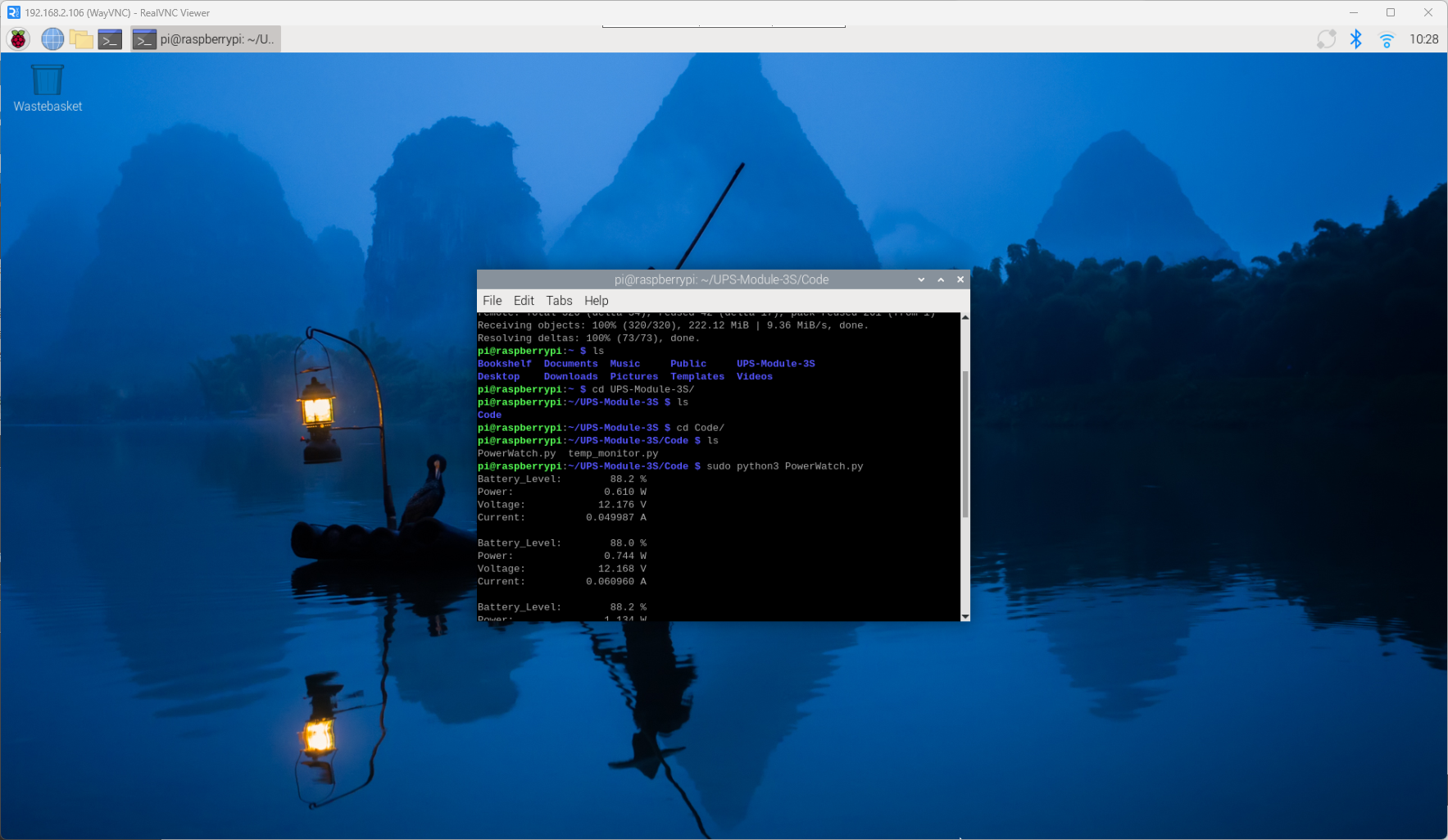
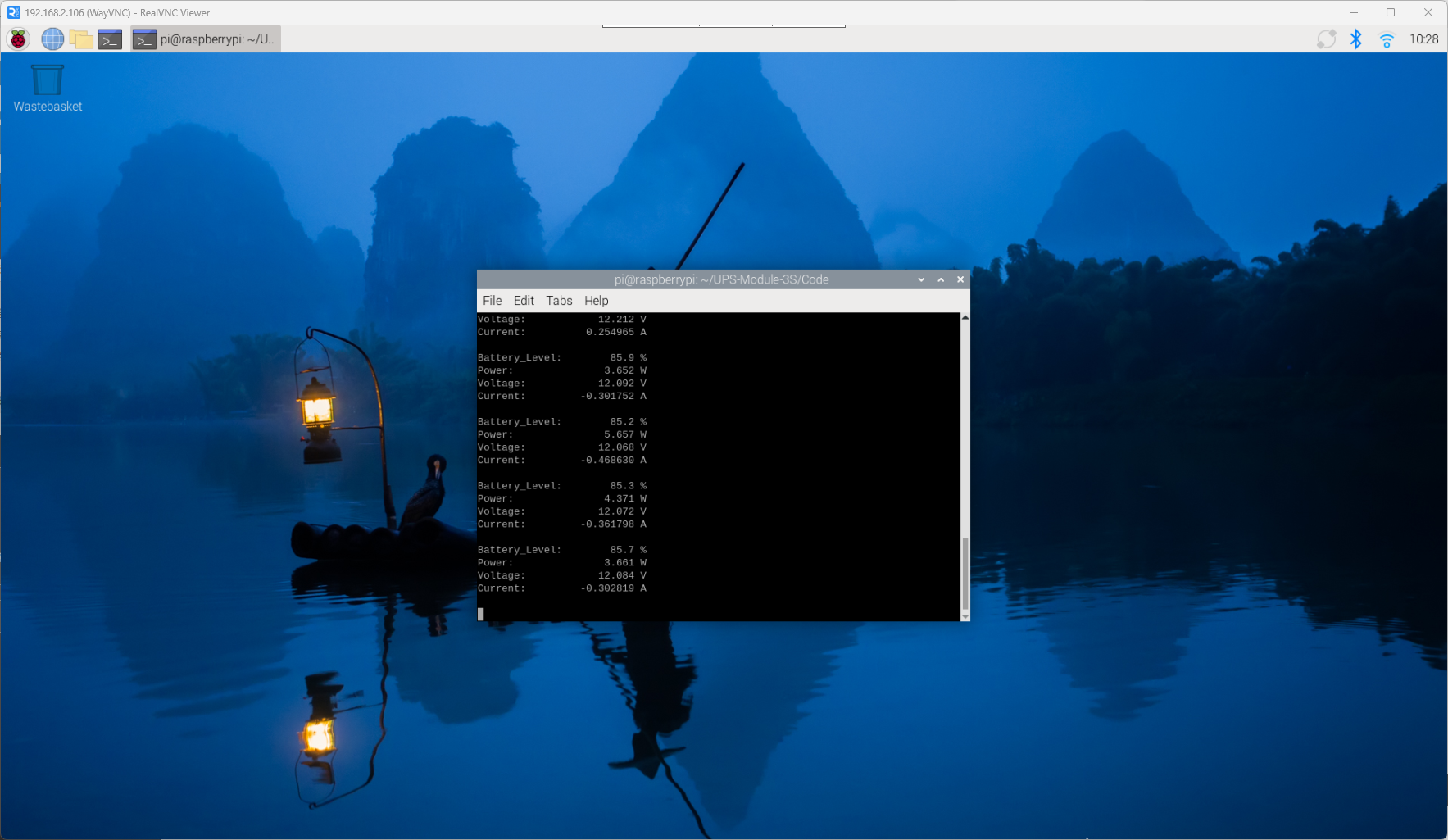
After running the program, it will display the battery level, power, voltage, and current.
Note
Current sign convention Positive values indicate the battery is charging; negative values indicate the battery is discharging.
UPS charging & protection features - Balanced charging: As the battery nears full capacity, the charge rate automatically slows. - Low-voltage protection: If the battery voltage drops too low, the UPS shuts down to preserve battery health.
Accuracy disclaimer All displayed values are approximate and intended for reference only.
Runtime on battery Without an external power adapter, actual run-time depends entirely on the connected battery’s capacity and condition.